A phone becomes difficult to use overseas when maps, email, cloud files, transport, or work tools do not open as expected. The problem is rarely solved by installing random packages. A better approach is to identify which service the app needs, begin with trusted sources, and test the functions that matter before travelling or changing SIM cards.
Understand What the Issue Actually Means
The phrase google huawei issue can describe several different situations. An app may be missing from the local store, require Google Play services, fail during account sign-in, or work in a browser but not as a native app. These are separate compatibility questions and should not be treated as one universal fault.
Some Huawei phones and software versions do not include Google Mobile Services as a pre-installed system layer. That does not mean every Google service or overseas app is unavailable. Many services can be reached through AppGallery, an official web version, a Quick App, or another supported route.
Start with AppGallery and Official Sources
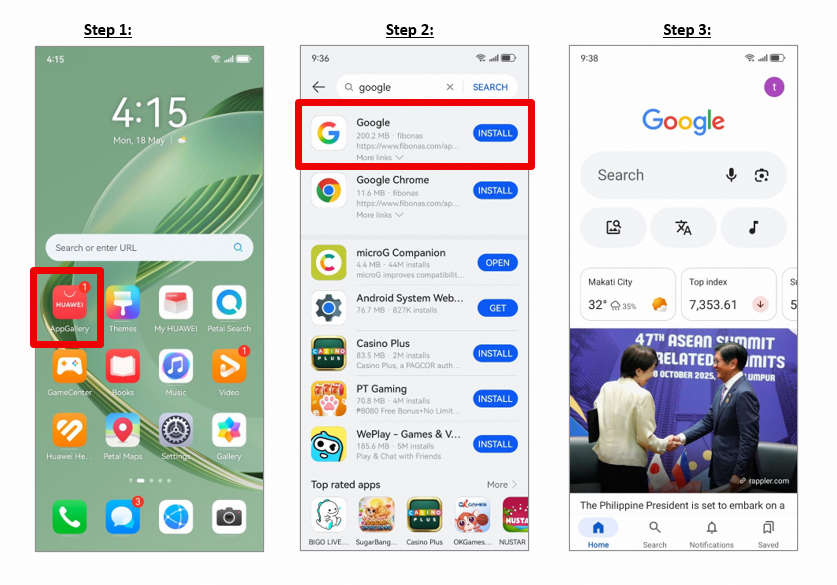
Open HUAWEI AppGallery and search for the exact app name. Huawei identifies AppGallery as its official app distribution platform, where users can search for, download, and manage apps. Check the publisher, region, permissions, and update source before installing anything.
The Huawei Community page linked through google huawei issue focuses on downloading Google apps on a Huawei phone. Use it as a setup reference, but confirm that the listed route applies to your model, software version, and country. App catalogues and supported functions can vary by service area.
Use Web Apps When They Fit the Task
A browser version is often the cleanest option for services such as Gmail, Google Drive, Google Maps, YouTube, or Google Search when a native app is unavailable or unstable. Sign in through the official website, test the main functions, and add the page to the home screen for faster access.
Web apps may not provide every background notification, offline feature, or device integration available in a native app. For travel, banking, or work, test uploads, location access, file downloads, and account verification before relying on the browser shortcut.
Build a Reliable Overseas App Setup
Install essential local apps in order: banking and identity services first, then maps and transport, messaging, delivery, and entertainment. Give each app only the permissions it needs. Keep AppGallery, the phone software, and installed apps updated.
If an app depends heavily on Google Play services, check whether the developer offers a Huawei-compatible version or an official web option. Do not assume that an unofficial installer will make every feature work. Login, push notifications, location, payments, and in-app purchases may behave differently.
Use the Landing Page as a Starting Point
The safest answer to the google huawei issue question is a structured one: identify the missing function, use Huawei’s official store or the provider’s verified website, and test critical features one at a time. This reduces security risks and creates a setup that is easier to update after moving to another country or changing networks.